Welcome to Quicksave.

Quicksave helps you save articles now and return to them later with context intact. This short guide shows how to save on mobile and web and how to organize your library in a way that stays useful over time.

What Quicksave does

Quicksave is not just a pile of reading. It is built to help you save interesting texts quickly and give them structure right away.

Instead of chasing open tabs, links in chats, or bookmarks you forgot about, you keep everything in one place. Collections, sub-collections, and Tags make sure you can later return not only to the article, but to the right context around it.

Step 1

Add articles on your phone

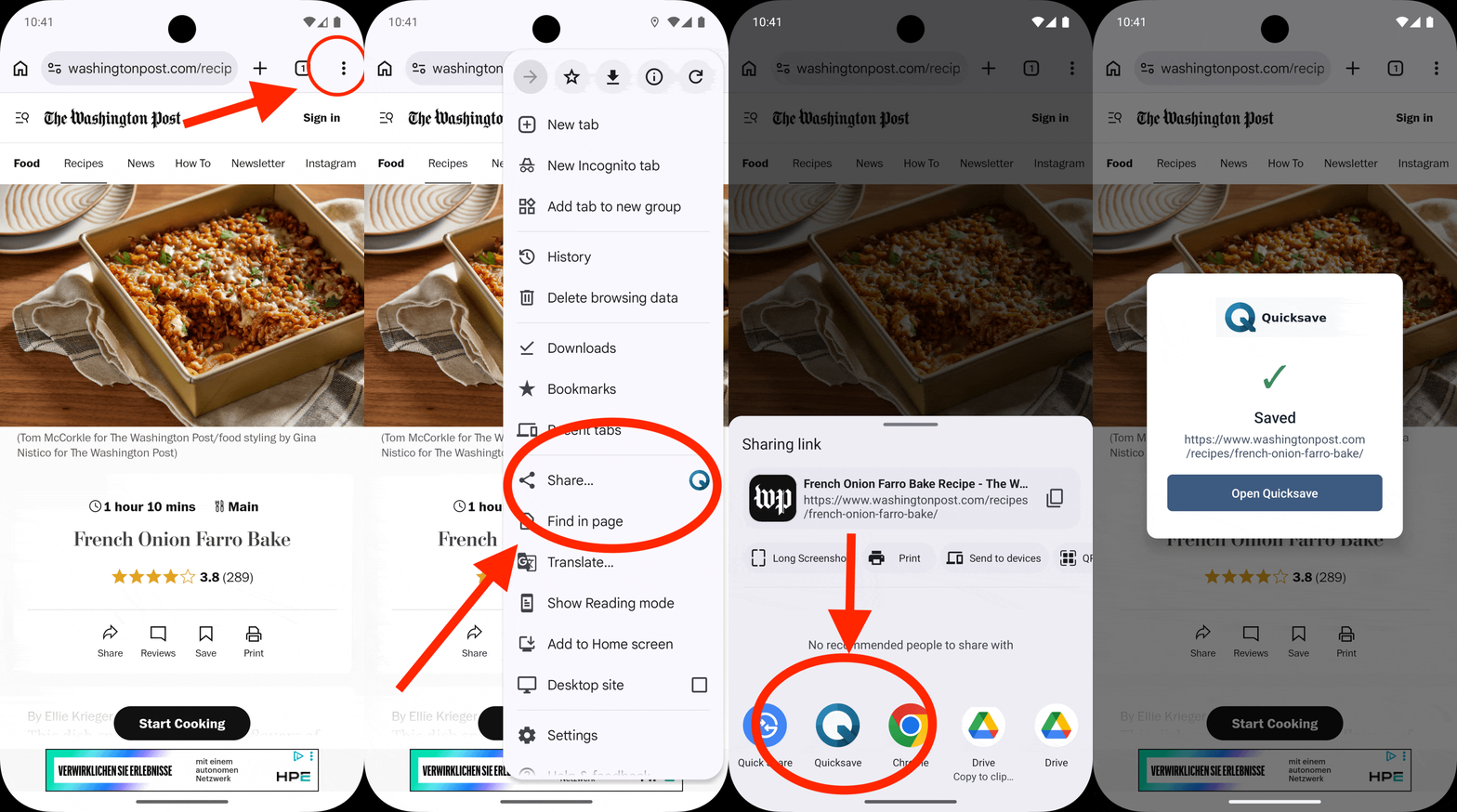
On mobile, there are two strong paths: save directly inside the app, or send articles into Quicksave using the native share features on iOS and Android.

Save directly inside the app

If you are already inside Quicksave, you can paste a link directly and add it to your reading library right away.

  • Open Quicksave on iPhone or Android.
  • Paste the link into the save field or save action.
  • If helpful, place the article into a Collection immediately.
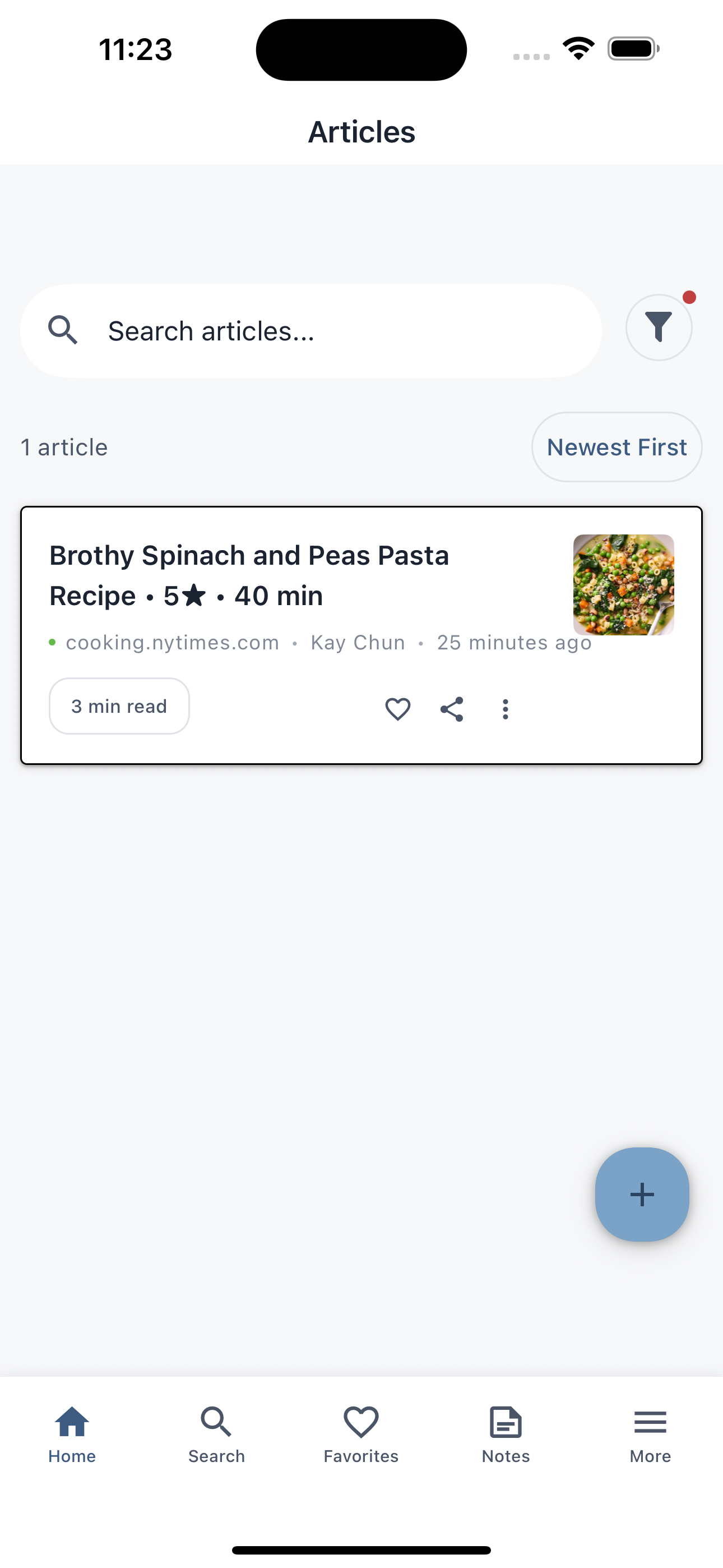
iPhone screenshot of the Quicksave app showing a saved article in the articles list.

Save an article directly inside the mobile app
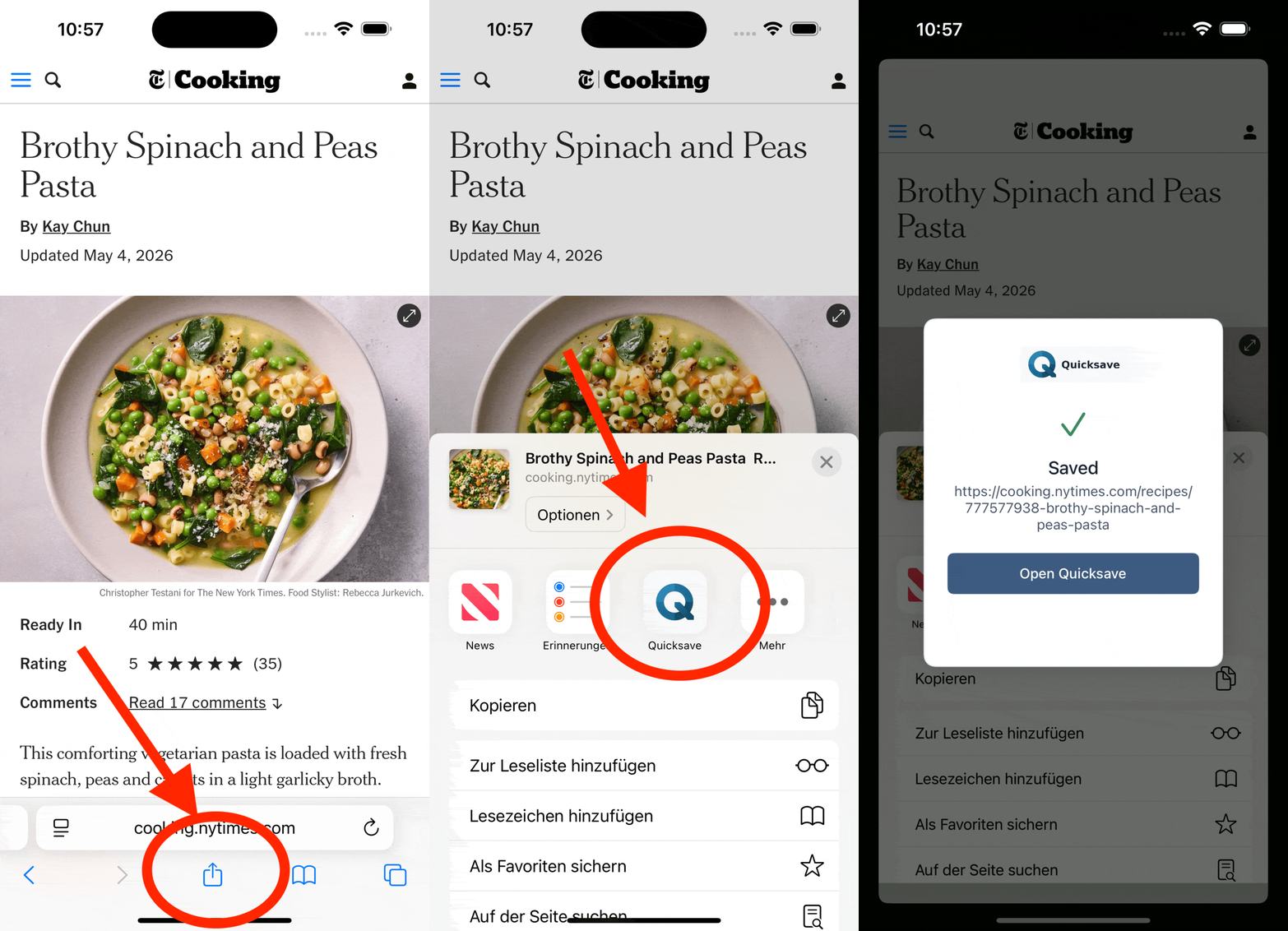
Save with the iOS share flow

When you find a good article in Safari or another app, you can pass it straight into Quicksave.

  • Tap the iOS share icon.
  • Choose Quicksave from the share sheet.
  • Confirm the save and return to what you were reading.
Animated iPhone demo of the iOS share flow for saving an article to Quicksave.

iOS share sheet with Quicksave

Save with the Android share flow

On Android, you can also send links directly from browsers, news apps, or social apps into Quicksave.

  • Open the share menu in the app you are using.
  • Choose Quicksave as the target.
  • Save the article and organize it immediately if needed.
Animated Android demo of the share flow for saving an article to Quicksave.

Android share sheet with Quicksave

Step 2

Add articles on the web

On desktop, you can either save directly in the web app or use the Chrome extension to capture links in one click.

Save directly in the web app

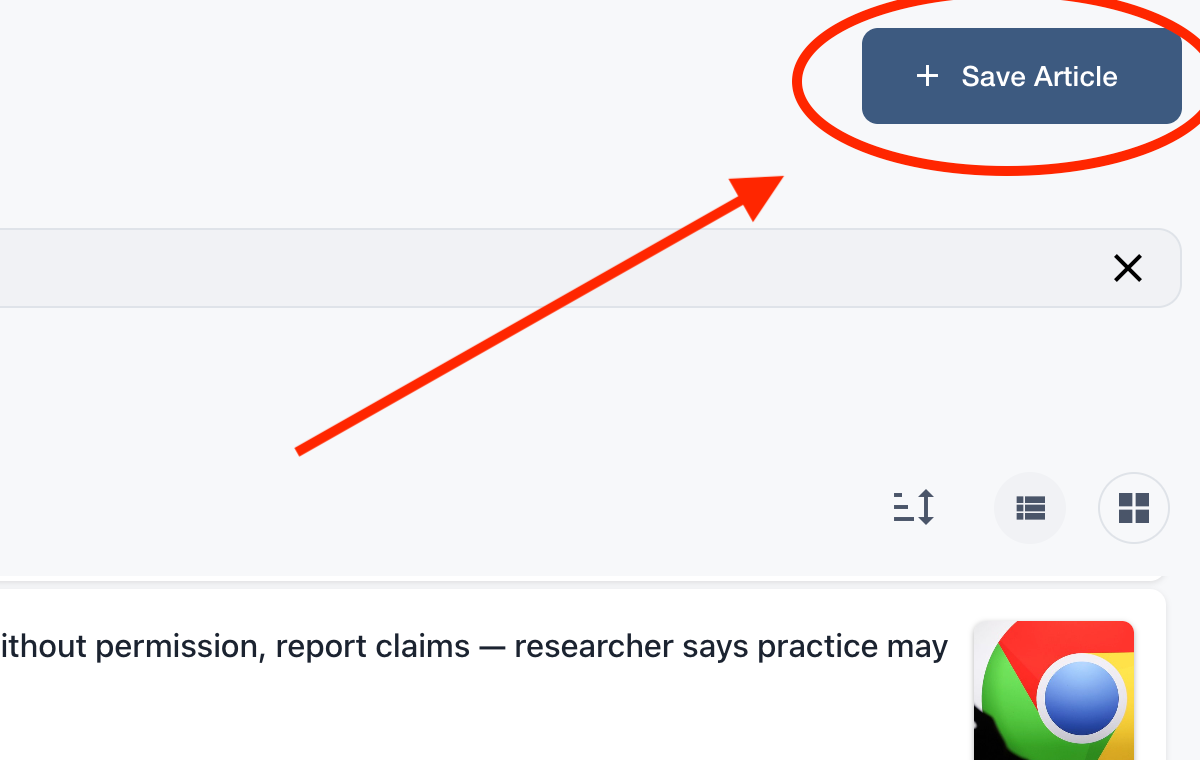
If you are already signed into Quicksave, you can capture links directly inside the web app.

  • Open the Quicksave web app.
  • Paste the link into the save flow.
  • Assign the article to a Collection or Tags right away.
Desktop screenshot of the Quicksave web app with the save article button highlighted.

Save an article directly in the web app

Save with the Chrome extension

The Chrome extension is the fastest way to save articles into Quicksave while you are browsing.

  • Install the Quicksave Chrome extension.
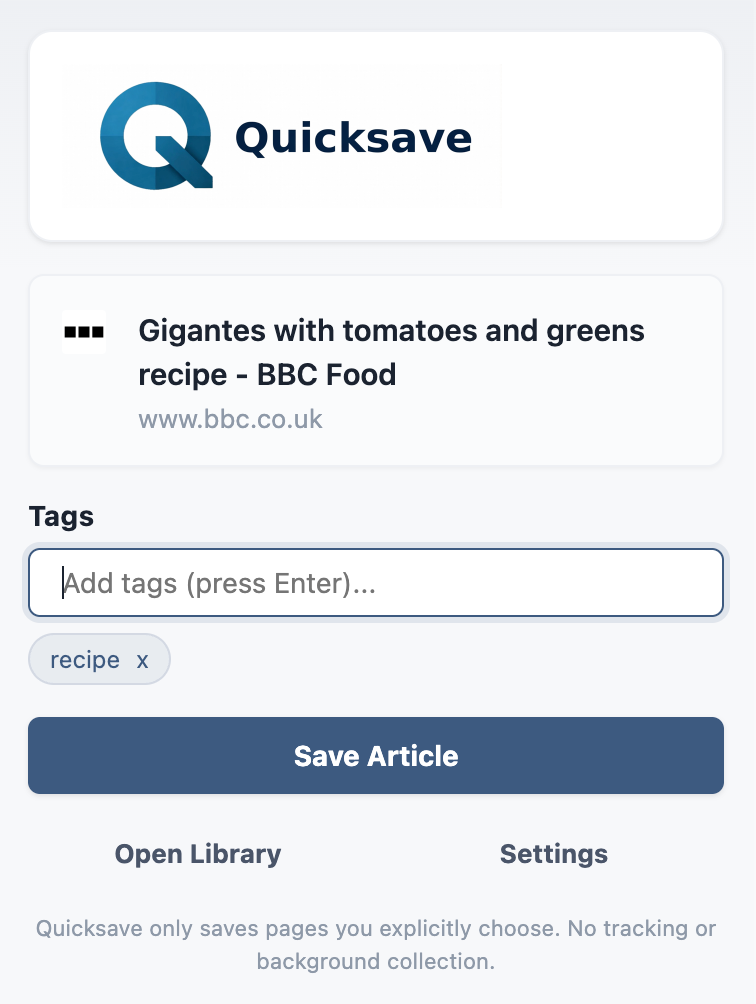
  • Open an article in your browser and click the extension.
  • Save immediately or place the article into the right structure on the spot.
Screenshot of the Quicksave Chrome extension showing the save view for an article.

Chrome extension saving an article

If you read heavily in the browser, the extension will usually become your fastest everyday path.

Step 3

Read with structure and keep thinking in context

The real strength of Quicksave starts after saving: you can structure your articles in a way that still makes sense weeks later and keep your own thinking attached to the text.

Use Collections, sub-collections, and Tags together

Collections give your library its main structure, sub-collections add precision, and Tags connect ideas across multiple contexts.

  • Use Collections for broad areas such as work, learning, or personal projects.
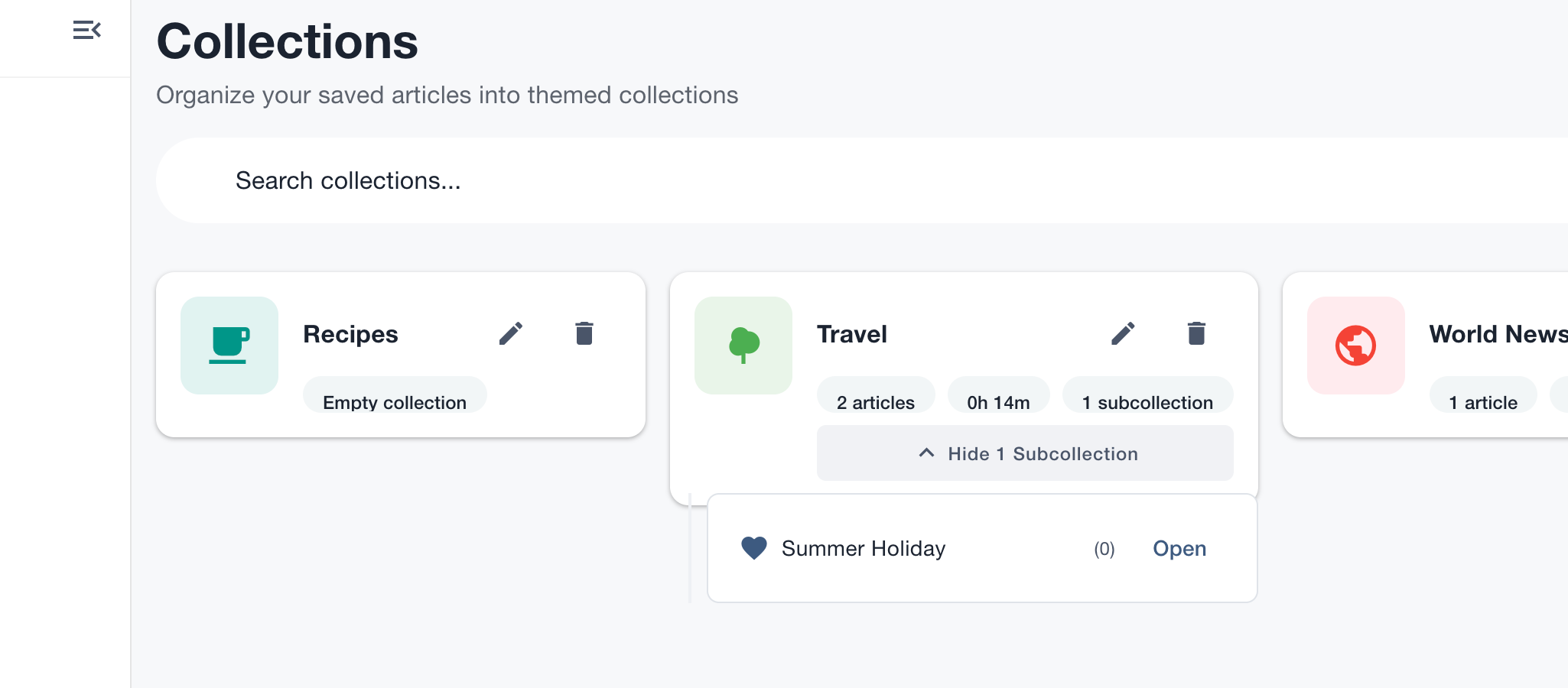
  • Add sub-collections when a topic needs more depth, such as “Home Building” with “Materials,” “Financing,” and “Layout.”
  • Use Tags for cross-cutting links when one article belongs to several themes at once.
Desktop screenshot of the Quicksave collections view with an expanded subcollection.

Collection overview with nested structure and thematic organization

Highlights and annotations keep your thinking with the article

Quicksave is not only about filing things away. You can highlight passages, add notes, and return later to both the source and your own interpretation.

  • Highlight important passages directly in the article.
  • Add notes or annotations when you want to capture an idea, revision, or next step.
  • That means you are not just saving articles, but preserving the reasoning you built while reading them.
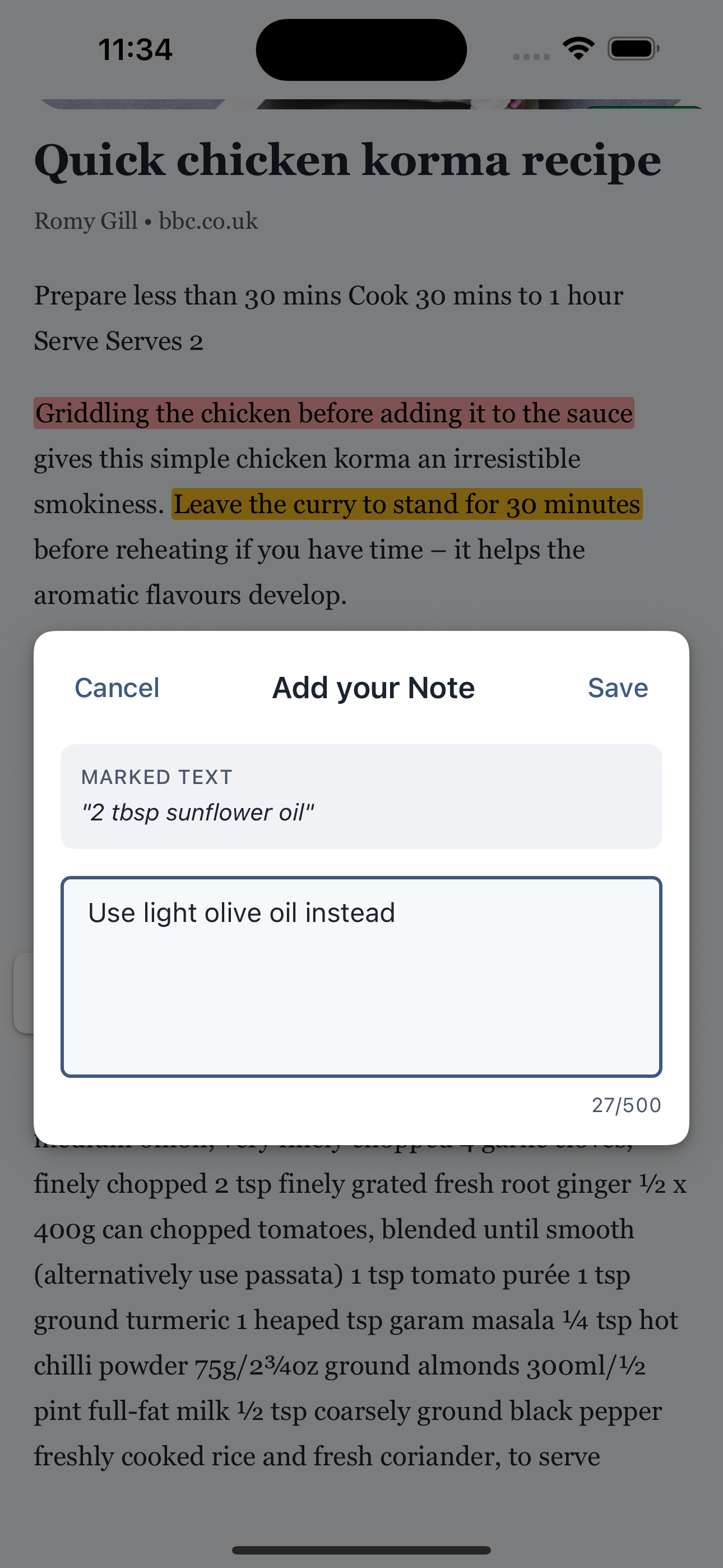
iPhone screenshot of a highlighted passage with an open note dialog in Quicksave.

Highlighted passage with note editor open in Quicksave

The best way to begin is to save one real article.

Once your first article is inside Quicksave, the product logic becomes simple: save, organize, and come back later with purpose.